
What if our Agent used agents to use tools?
Including tools that are themselves autonomous agents?
Want to hear more about our motivations for this experiment? Listen to this clip from project lead Reto Meier.
Smart Tools make Agent tool use more reliable and predictable
Smart Tools are self-contained ReAct loops that isolate and encapsulate tool calling. They are mini-Agents that can:
- Help our agent interface with tools by enabling self-correction of tool invocation errors, and processesing of non-deterministic tool outputs.
- Use other agents as sub-agents with custom prompting that enables them to perform specific tasks.
- Respond to human in the loop (HitL) questions from sub-agents without needing an actual human in the loop.
They help us address some common Agent tool use challenges:
- LLMs frequently make mistakes when trying to invoke tools (particularly with tools that require exact text matching (Ie. File edits)).
- LLMs get easily side-tracked if it takes multiple attempts to get a particular tool to work.
- Agentic tools (E.g. Stitch, Jules, etc.) sometimes require a human-in-the-loop to respond to questions (E.g. Clarifications or selecting between multiple options) that block agent progress until they get answers.
- The more “general purpose” the agent tool, the more the calling Agent may:
- Struggle to reliably understand the capabilities of the agent tool (I.e. It can be used to take a screen shot, capture a DOM tree, or run a local emulator, etc.).
- Need a lot of trial and error to correctly prompt the agent tool to perform specific actions related to the agent tool’s capabilities.
- Not produce a predictable response in a predictable format.
- Some tools produce large volumes of data (E.g. Logs, bash outputs, etc.) that can fill up our Agent’s context window.
Helping Agents use simple tools
LLMs are getting better at tool use / function calling, and will generally get the syntax correct—but that’s just the start.
For example, creating a tool for file editing is easy. MoMoA edits files in memory so it’s effectively:
const updatedFileString = existingFileString.replace(oldText, newText);For that to work, our LLM needs to get the oldText exactly right. The underlying code can handle replacing just the first, or ‘all’ occurrences of the string, so you can make that part of the tool—though now the LLM needs to get that right too. If it wants to replace the third and fifth instances only, things get more complicated.
You could just decide that all file edits require the LLM to re-write the whole file. But:
- You can’t overwrite a file that’s larger than your output token limit (and you don’t want to pay for those tokens either).
- The LLM often introduces unwanted changes (E.g. Removing code comments or replacing code with ”[… this part stays the same …]”).
Not to mention the text needs to be properly escaped and correctly handle whitespace.
Smart Tools provide:
- An isolated context window in which to keep trying the tool call until it gets it right, without filling up the main context window on a side quest.
- An opportunity to provide extremely specific prompting for each very specific task.
- A chance to provide detailed feedback and suggestions when a tool call fails.
The Smart Tool’s instruction prompt has no other distractions. It is focussed only on how to perform a file edit (the Smart File Editor in MoMoA has over 100 lines of instructions).
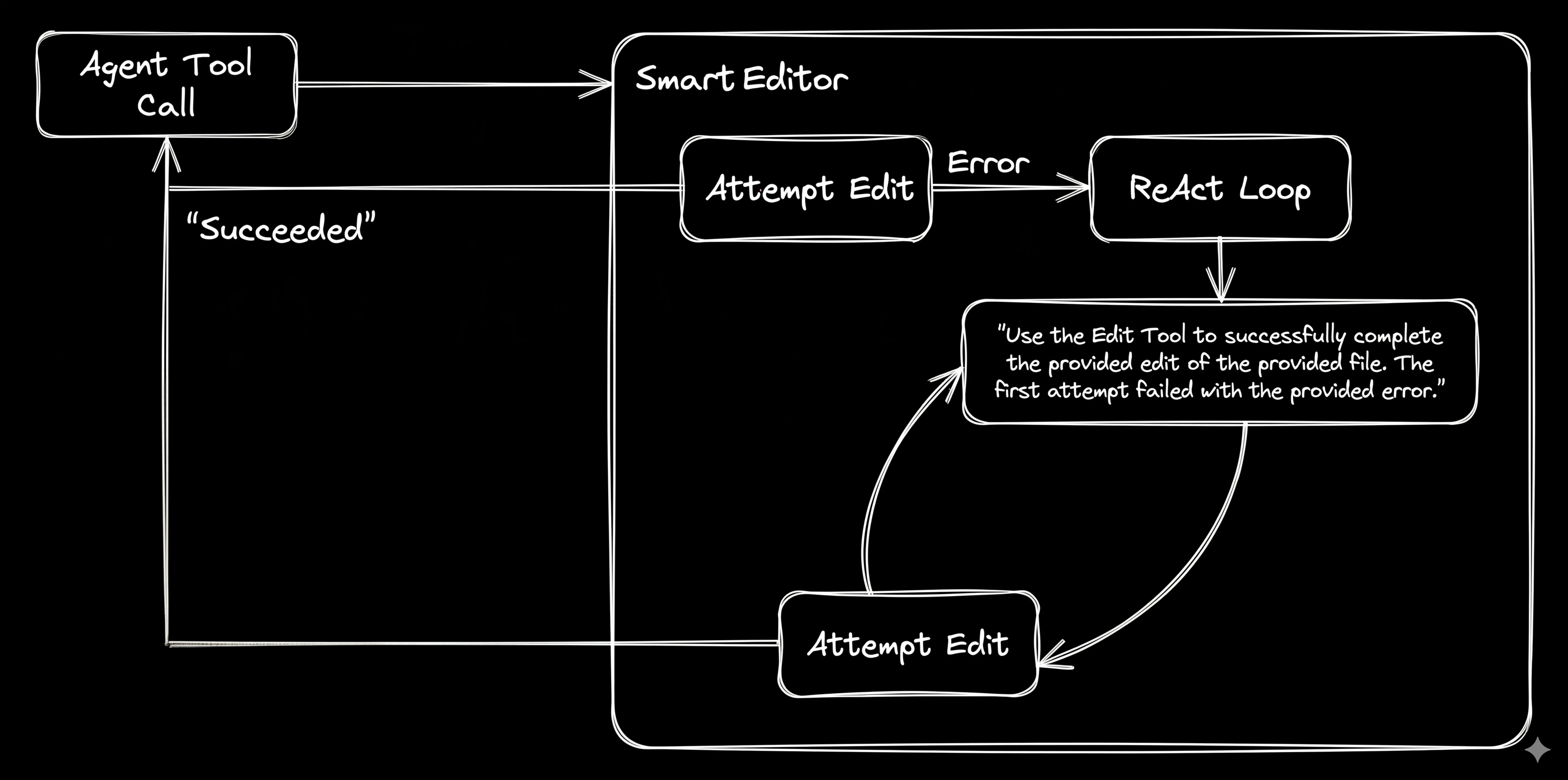
Figure 1. The simplest file-editing ReAct Loop: Use the provided tools to successfully complete the request’s file edit.
By providing a summarized conversation log from the MoMoA Work Phase that led to the edit request, and detailed feedback and guidance, we dramatically increase the ability to self-correct.
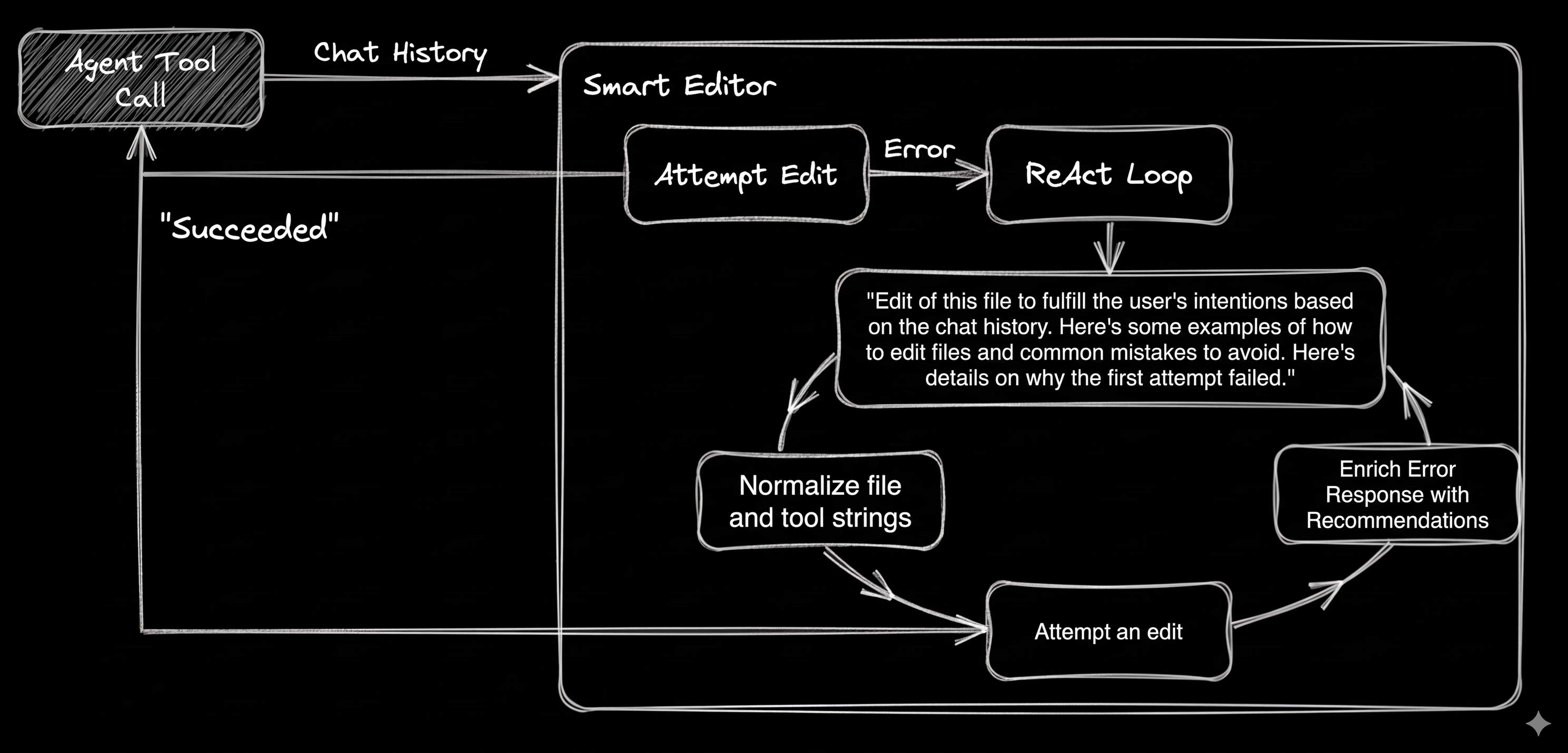
Figure 2. A more complete File Editing ReAct Loop.
This pattern for the Smart File Editor can be used to add self-healing to any tool without polluting the main Agent context window or adding hundreds of lines of tool-specific instructions into every single prompt.
Using Agents as predictable tools
Adding Agents as tools for your Agent should, in theory, enable it to always provide better results than any of the agents it uses.
For that to work, our agent must reliably:
- Call agent tools correctly.
- Manage and interpret the outputs.
- Correctly parse and utilize the outputs.
Smart Tools enable us to create a more predictable interface between our Agent and the agents we want to use as tools.
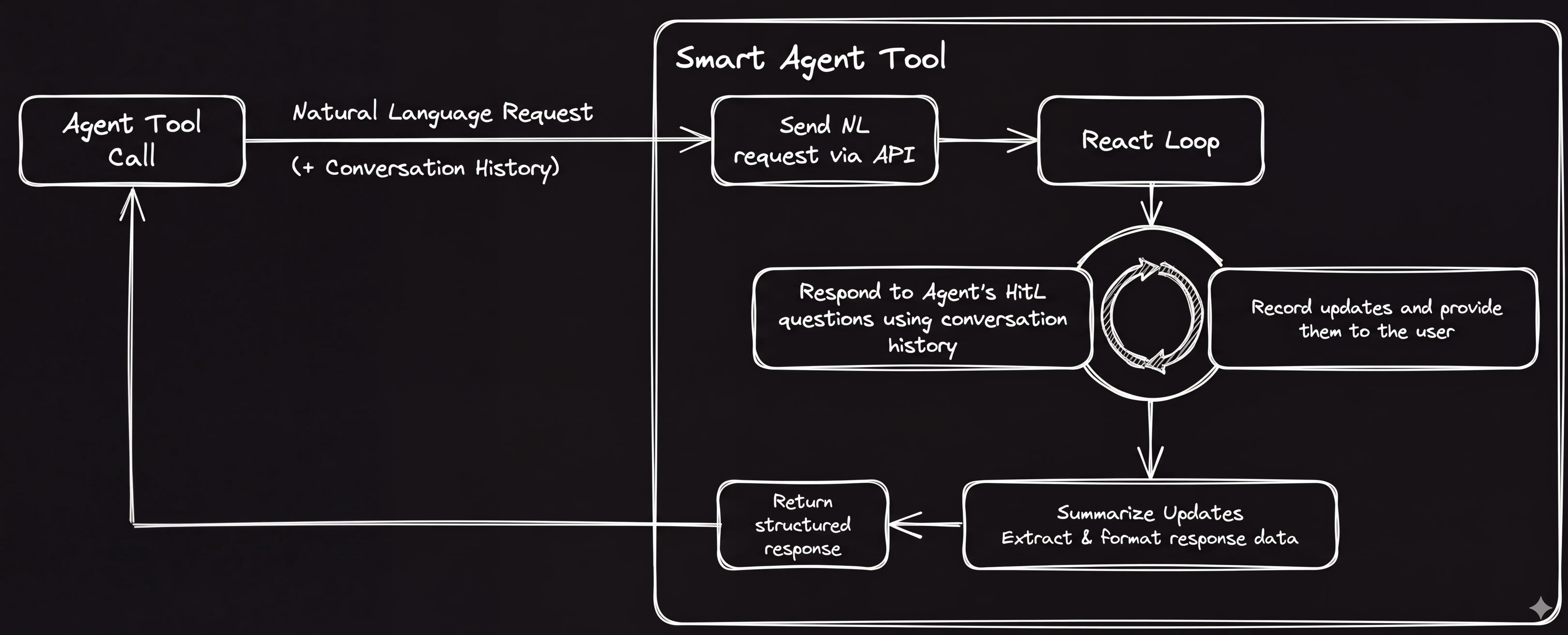
Figure 3. Turning Agents into Smart Tools.
This gives us three ways we can use independent agent tools within our Agent. We can:
- Have our Agent answer questions and provide HiTL responses.
- Perform post-processing to ensure the output is predictably filtered and formatted.
- Provide an optimized prompt (and perform post-processing) so that we get a specific output (I.e. Ask for a screen shot and get an image or ask for test results and get a JUnit XMLreport.)
Our Agent is the “human in the loop” (E.g. Stitch)
The Stitch API takes a natural language request and guarantees a predictable output: A design in HTML and a preview PNG.
We tell our Agent what the Stitch tool can do:
Use the Stitch UI Designer tool to assist with any task involving visual design. You should use the UI Designer for help designing user interfaces (UI) whenever you are creating or improving user interfaces for web or mobile apps.The Stitch Smart Tool calls the API to create a new project and initiate the design creation. The Smart Tool then takes on the role of the human-in-the-loop, listening for any HitL questions from Stitch and answering them based on its additional context. When Stitch is finished the Smart Tool adds the two design files to the project.
Post processing agent outputs (E.g. Jules)
Jules is a more general purpose SDLC agent—it takes a natural language request and returns a code patch and new binary files (“media”).
Unlike the Stitch API, which always returns the same output, Jules may return files that we don’t need (E.g. Build and test artifacts, logs, etc.).
Because MoMoA does everything in memory, Jules offers something in addition to writing code: It has an execution environment in which it can run code. For MoMoA, Jules’ ability to run tests and builds is incredibly valuable—and neither of these actions result in files we want to add to our project.
We tell our Agent how we believe Jules can be most useful:
Jules has access to a build and test environment and is capable of making changes to code and building, running, and testing software projects. Jules is very good at:
  * Building projects and resolving build errors.
  * Running tests (Unit, Integration, and Browser Automation / E2E) and reporting on the test failures.
  * Resolving lint errors. If your goal is to resolve lint errors, you must ask Jules to do this for you.
Like Stitch, our Jules Smart Tool calls the Jules API and listens for (and answers) any questions.
But it doesn’t just return the patch. Instead, it uses another LLM call to look at the patch and decide which (if any) files should be integrated into the project.
Jules has completed its task and produced the following unified diff. Review this diff in the context of the conversation that led to the specific task Jules was asked to complete and decide if these changes should be applied to the project. Each recommended change must be carefully reviewed to ensure it is within scope of our goal and doesn't introduce unwanted changes.To capture the non-file outputs, the Jules Smart Tool keeps track of the entire log of progress, including all the bash outputs, and summarizes them using a prompt designed to filter out the noise and capture the key information.
You are an expert at understanding and summarizing the output from bash commands and logs. Your response should be a concise, clean, and chronological summary of the provided bash command and its generated output.

You will be shown the Bash Output that includes the bash command, error code, and the result of running the command. Your output should summarize the output such that the agent can understand progress (success and failures). Your result should read like a simplified log file that includes natural language summaries of what happened along with specific details of failures.
We can use the same approach to wrap any general agent, for example the Gemini CLI. The Gemini CLI doesn’t have its own cloud environment, so our Smart Tool would need to provide it with one. We could use the same execution environment as our server, but at the very least we’d want to put it in a container. In a future experiment we’re going to explore providing MoMoA with different execution environments, so we’ll hold off on a Smart Agent wrapper until we have that available.
We must go Deeper. Smart Tools that use agent Smart Tools to perform specific tasks
Agents like Jules can operate in development environments to perform all kinds of tasks. Rather than trying to explain to our Agent everything Jules is capable of, how to prompt for those outcomes, and how to interpret the outputs—we create more Smart Tools that encapsulate these specific tasks.
A Screen Capture Tool
Jules is capable of taking a screen capture of a web app using Playwright and returning a .png file, but it doesn’t always get it right the first time. In any given instance it may not realize it needs to use Playwright, or to install the required dependencies, or that it needs to run the service in the background using nohup.
The Screen Capture Smart Tool executes the julesTool with a specific prompt similar to ‘skills’ to increase the likelihood that it gets it right:
**Step 1: Install the dependencies**
* pip install shot-scraper && shot-scraper install && npx playwright install && npx playwright install-deps

**Step 2: Start the Project**
* Install any project dependencies.
* Then use `nohup` to start the server in the background.

**CRITICAL:** Your execution environment closes the shell session immediately after a command finishes, so a standard background job will be killed by the hang-up signal (SIGHUP) before I can reach the next step. Use `nohup` to ensure background processes are detached and persist, allowing you to run subsequence commands that require the server to be running to work properly.

**Step 3: Navigate to the correct screen**
* Use playwright to navigate the app to the correct screen as defined by the user's request.

**Step 4: Capture the Screenshot**
Use the 'shot-scraper' app to take the screenshot. Here's an example of how it works:
shot-scraper http://localhost:3000 -o ./screenshots/screenshot-[timestamp without spaces].png --width 1280 --height 720 --wait 10000
And we tell the Orchestrator that this is possible via the Screen Capture tool use instructions:
Use the Screen Capture Tool to take a high-fidelity screenshot of the project while it is running. The tool automatically handles installing necessary dependencies, starting your project's server in the background, navigating to the specified page, and capturing the visual output that will be returned as an image file you can read.Now we have a tool that uses natural language instructions to take screen shots, optimized with the specific instructions required to more reliably return the desired result.
When to create specific tools
During our experimentation we wrapped many agent-powered tasks in Smart Tools including Test Runner, Build Confirmation, and Linter. We ultimately didn’t include them in this prototype for the simple reason that they weren’t necessary(!). The Orchestrator and Work Phase experts were able to correctly use Jules to perform those actions.
Screen Captures, on the other hand, proved much more challenging with our Experts not reliably understanding that this particular task was possible, and the subagents struggling with playwright dependency installation, background operation, and how to use shot-scraper.
In general Smart Tools for tasks using agents are best suited to situations where:
- Your Agents aren’t reliably asking the more general purpose tools to do something they’re capable of.
- The output from the general purpose agent requires significant post-processing.
- The quality of response for a specific task can be significantly improved by using a very specific prompt.
This approach enables us to optimize our main Agent (MoMoA in this case) for its intended purpose (SDLC, Research, etc.) and take advantage of other agents with specific advantages (E.g. A development environment, the ability to create high fidelity user interfaces, etc.), while balancing their general purpose utility with specific required tasks.
What’s next?
Using Smart Tools to instruct agents to perform tasks opens up some interesting possibilities:
- What other tasks can / should be wrapped in a Smart Tool?
- What if we integrated CLI-based Agents? How would we provide them with execution environments?
- Which execution environments can we give our Agent access to?
- Is there a way to bridge my local CLI Agent and my Cloud Agent?
A note on the code
All the code in the repo was written with extensive AI-assistance—there’s definitely code no human has ever reviewed—using a combination of the Gemini App, Jules, and the MoMoA prototype.